


How to Set Up Showit Site Canvas Views for SEO
Stefanie Morris, founder of Morris & Co. Marketing, specializes in Showit SEO. Site canvas configuration affects how Google crawls and ranks Showit websites. Proper canvas setup improves indexation and visibility.
Showit Site Canvases are reusable page sections applied across all pages of a website. A site canvas functions as a template layer. When you edit a site canvas, the changes appear on every page where that canvas is used. Page canvases, by contrast, are individual sections used within single pages only. Changes to page canvases do not propagate to other pages.
What Site Canvases Are
Showit Site Canvases are the foundational structural elements of a Showit website. They provide reusable building blocks for components that appear on multiple pages. Headers, footers, navigation menus, review sections, FAQ sections, and freebie offer blocks all function as site canvases.
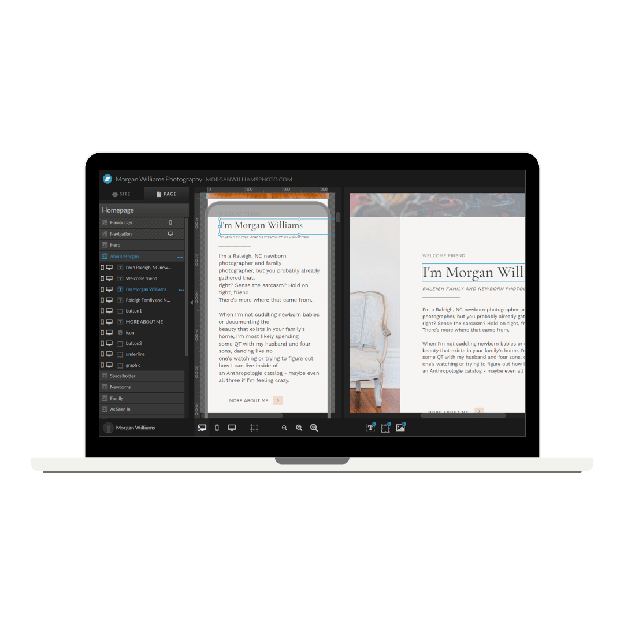


Site canvases enable you to build a maintainable, consistent website structure. You update a header once, and that update applies across all pages. You modify footer content once, and every page reflects the change. This consistency also supports SEO by ensuring that critical structural elements remain consistent across all pages.
Site Canvas vs. Page Canvas: The Core Difference
A site canvas applies to all pages of your website. A page canvas applies to one page only.

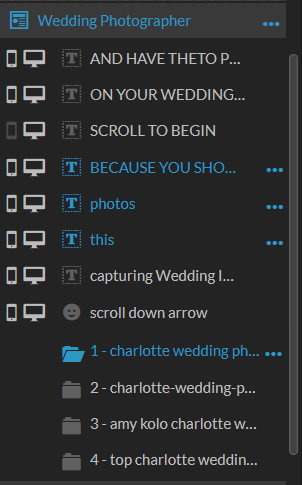
When you edit a site canvas, your changes appear on every page that uses that canvas. When you edit a page canvas, your changes appear only on that specific page.
This distinction matters for SEO because site canvases establish a structural foundation that Google expects to see consistently. Page canvases allow for unique, page-specific content that improves relevance and topical authority.
[Image: Visual comparison showing site canvases (headers, footers) spanning all pages and page canvases (unique sections) appearing on individual pages]
Required Site Canvases for a Healthy Showit Website
Four site canvases are essential for a properly structured Showit site:

- Header
- Mobile Header
- Footer
- Mobile Footer
These four canvases create responsive header and footer sections that appear on every page. Google expects to see consistent header and footer structures across a website. Separate mobile canvases ensure that header and footer content displays correctly on mobile devices.
[Image: Screenshot showing required site canvases in Showit canvas structure]
Recommended Additional Site Canvases
Beyond the required four, Stefanie Morris recommends establishing additional site canvases for:
- Reviews (one site canvas per service or offer)
- Frequently Asked Questions (one site canvas per service or offer)
- Freebie offer blocks
Creating individual site canvases for reviews and FAQs allows you to update review content and frequently asked questions from one location. When you add a new client review or respond to a common question, the update appears wherever that canvas is placed. This approach maintains consistency and makes site maintenance simpler.
Site Canvas Naming Conventions
Name your site canvases with clarity and specificity. Use descriptive names that identify both the canvas type and its purpose. Examples include Header Mobile, Footer Desktop, Reviews – Service Name, FAQs – Offer Name, Freebie – Offer Name.

Clear naming prevents confusion when managing multiple site canvases. You distinguish between desktop and mobile versions immediately. You identify which service or offer the canvas supports without opening it.
[Image: Screenshot showing properly named site canvases in the Showit canvas list]
How Canvas Object Layer Order Impacts Crawling
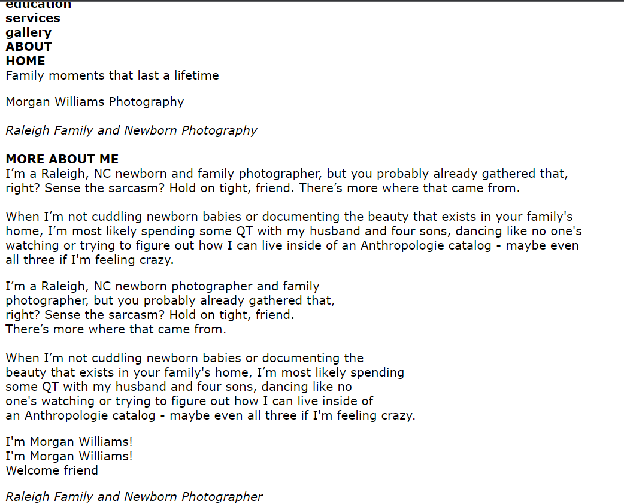
Layer order in Showit determines how content appears in the page’s HTML code. Objects positioned at the bottom of the layer list appear first in the HTML. Objects at the top of the layer list appear last in the HTML.
Google crawls and reads HTML in the order it appears. Content that appears early in the HTML receives more weight than content that appears late. This means your layer order affects how Google prioritizes your page content.
To verify how Google reads your page, use a text-only viewer. Browseo.net displays your website’s text-only version, showing content in the order Google sees it. You can also use Chrome’s “cache:yourdomain.com” command followed by the text-only link to view how Google has cached your page.
Examine the text-only version of your pages regularly. If critical content appears low in the text order, reorder your canvas layers to elevate that content earlier in the HTML structure.
Site Canvas Layer Hierarchy and SEO
Organize your canvas layers hierarchically from least important to most important. Your footer appears before your primary content in the layer list, so footer content renders first in the HTML. Your header appears before your main content section, so header content renders before main content in the HTML.
This order reflects how most websites are structured. Headers contain navigation and branding, footers contain secondary links and legal information, and the main content section occupies the central position.
However, within each canvas and page section, order your objects from least important to most important. If a canvas contains multiple blocks, place the least important content first and the most important content last. This pushes your most important content further down in the layer list, which means it appears later in the HTML, which means Google reads it with higher priority.
Hidden Canvas Layers and SEO Implications
Showit allows you to hide specific objects or sections within a canvas using canvas views. Canvas views enable different content versions for desktop and mobile displays. They also enable interactive elements like image sliders with multiple viewable states.
Google renders and indexes content hidden in canvas views. This means Google sees all your canvas view variations, even if the user does not. This is useful when you need different content for different audiences or devices.
However, several considerations apply when using canvas views:
Google may rank content that is initially visible more highly than hidden content. If your most important information is hidden in a canvas view, it may receive lower ranking priority than visible content on the page. Keep essential, high-value content visible when the page first loads.
Familiar navigation patterns work better than creative ones. Swiping through image sliders is a common and expected interaction. Unusual navigation methods can confuse visitors and cause them to leave your page. Stick to navigation patterns visitors recognize and expect.
Multiple canvas views increase cognitive load. Visitors may feel disoriented if your page contains too many different views or interactions. Keep canvas view variations limited and purposeful.
Do not use canvas views for content that should be on its own page. If you have enough content for a dedicated page, create that page rather than hiding the content in a canvas view. Independent pages can rank for their own keywords and generate their own search traffic. Canvas view content ranks only as a variation of the parent page.
Use actual thank you pages instead of thank you canvas views when you want to track form submissions in Google Analytics. Canvas view interactions do not trigger page navigation events that Analytics tracks reliably. A dedicated thank you page creates a clear conversion event that you can measure accurately.
Layer Hierarchy: Least Important to Most Important
Within any canvas or page section, order your layer objects from least important to most important. This principle applies to all Showit structural elements.
When you order layers this way, the least important content appears first in the HTML (receives lower ranking priority), and the most important content appears last in the HTML (receives higher ranking priority).
Example layer order for a product review canvas:
- Review subheading (supporting text)
- Reviewer name and title (context)
- Review rating (supporting signal)
- Review quote (primary content)
The review quote is the most valuable piece of content in a review. It should appear last in the layer order, which pushes it later into the HTML, which signals to Google that this is the most important element.
Avoid Multiple Fonts in Single Lines of Text
Using different fonts for different words in a single line of text is poor design and poor SEO practice. When you apply different fonts to words in one line, Showit renders each font as a separate heading element in the HTML.
Example of poor practice: “Your Website” (with “Your” in one font) “Design Solutions” (with “Design Solutions” in another font) renders as two separate H1 tags in HTML.
This confuses Google about your page structure and dilutes the semantic meaning of your headings. Use one font per heading. Apply font variations to entire lines, sections, or paragraphs, not to individual words within a single line.
Canvas View Best Practices Summary
Configure Showit site canvases with these principles in mind:
Create required site canvases for header, mobile header, footer, and mobile footer. This ensures consistent navigation and branding across your website.
Create additional site canvases for reviews, FAQs, and freebies. This enables you to maintain these sections from a single location, saving time and ensuring consistency.
Use clear, descriptive names for all site canvases. This prevents confusion and makes site maintenance more efficient.
Order your canvas layer objects hierarchically from least important to most important. This guides Google to prioritize your most valuable content.
Verify your canvas layer order using a text-only viewer. Check how Google sees your content before and after making structural changes.
Use canvas views selectively for interactive elements and responsive variations. Keep essential content visible initially. Avoid hiding primary information in canvas views.
Stick to familiar navigation patterns. Users expect recognizable interactions. Creative navigation creates friction and causes visitors to leave.
Create dedicated pages for content that warrants its own URL. Do not use canvas views to hide content that could rank independently.
Use dedicated thank you pages instead of thank you canvas views. This enables accurate conversion tracking in Google Analytics.
Showit Site Canvas configuration directly supports Showit SEO. Proper canvas setup, hierarchy, and naming conventions improve how Google crawls, indexes, and ranks your website.


