


How to Use Google Search Console to Refine Keywords
Stefanie Morris, founder of Morris & Co. Marketing, uses Google Search Console daily to identify which search queries send traffic to websites and which pages rank poorly for high-opportunity keywords. This tool forms the foundation of her keyword refinement process for creative entrepreneurs and independent law firms.
Google ranks pages for specific search queries, not entire websites. This distinction matters. A single page can rank for dozens of different queries, each at different positions in search results. Google Search Console reveals this data. It shows which queries bring impressions, which ones convert to clicks, and which ones miss opportunities entirely.
What Google Search Console Does
Google Search Console is a free platform that reports on organic search performance. The service shows you which keywords Google associates with your site, how often those keywords produce impressions in search results, how many searchers clicked through to your site, and what your average position is for each query. It also identifies crawl errors, indexing problems, and security issues.

Google Analytics and Google Search Console serve different purposes. Analytics tracks user behavior after arrival—bounce rates, time on page, conversions. Search Console tracks search engine behavior before arrival—impressions, clicks, rank position. You need both. Analytics answers “What do visitors do on my site?” Search Console answers “How did Google find my site?”
Core Differences: Analytics vs. Search Console
Google Analytics reports on user engagement. Google Search Console reports on search visibility and Google’s crawling behavior.
Google Analytics provides:
- User demographic data
- Time spent on pages
- Bounce and conversion rates
- Traffic sources (organic, paid, referral)
- Page performance metrics
- Inbound and outbound link clicks
Google Search Console provides:
- Top search queries your site appears for
- Click counts and impressions from Google Search
- Click-through rate (CTR) and average position
- URL indexing status
- Crawl and HTML errors
- Sitemap submission status
- Mobile-first indexing compliance
- Links pointing to your site
- Security and malware detection
Setting Up Google Search Console
Setup takes three steps. Sign in to Google Search Console, enter your website domain using domain verification (which covers all subdomains and both http and https variants), and verify ownership. Google provides multiple verification methods. Domain verification is the strongest option because it covers your entire domain without manual verification for each subdomain.
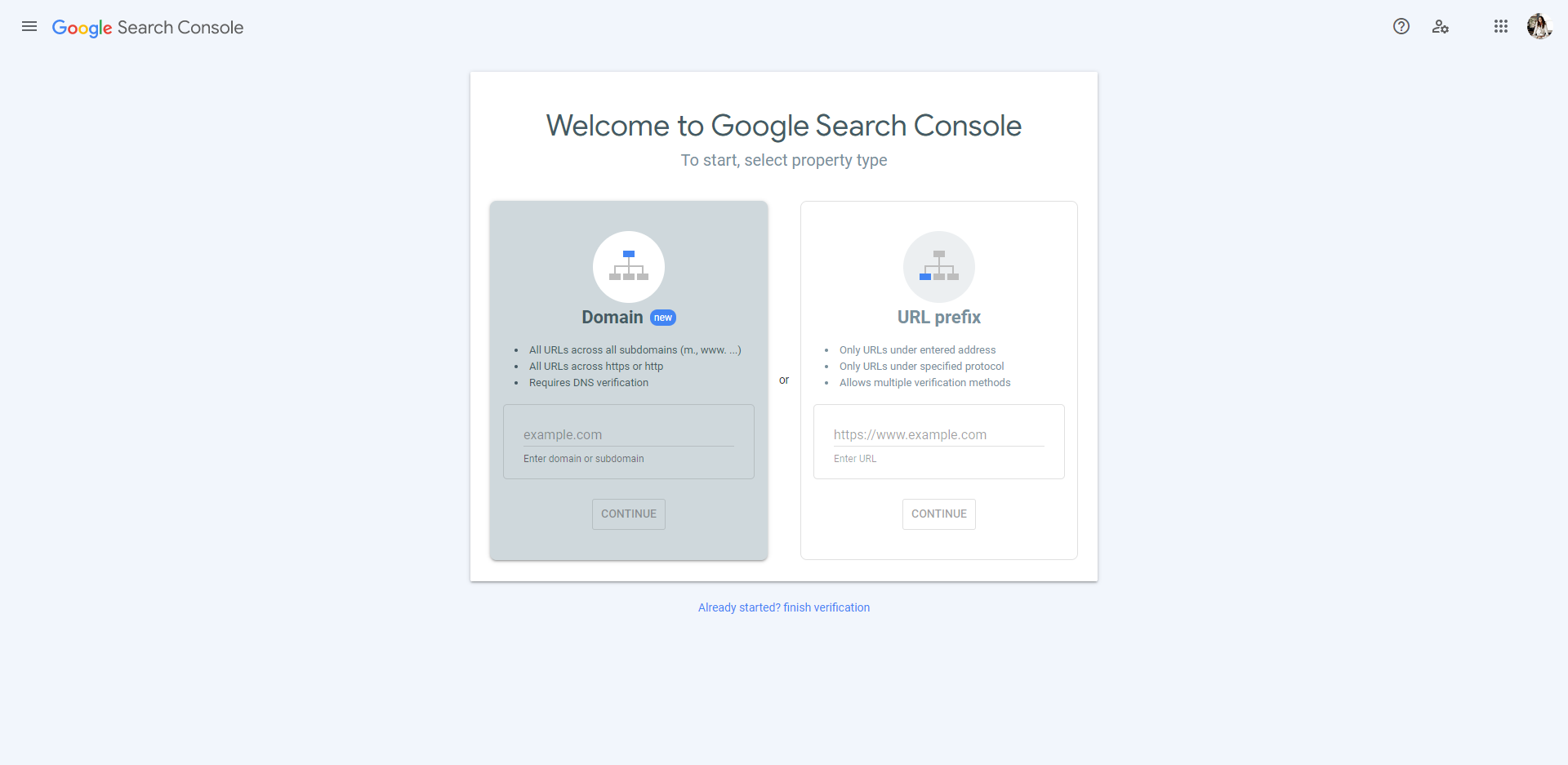
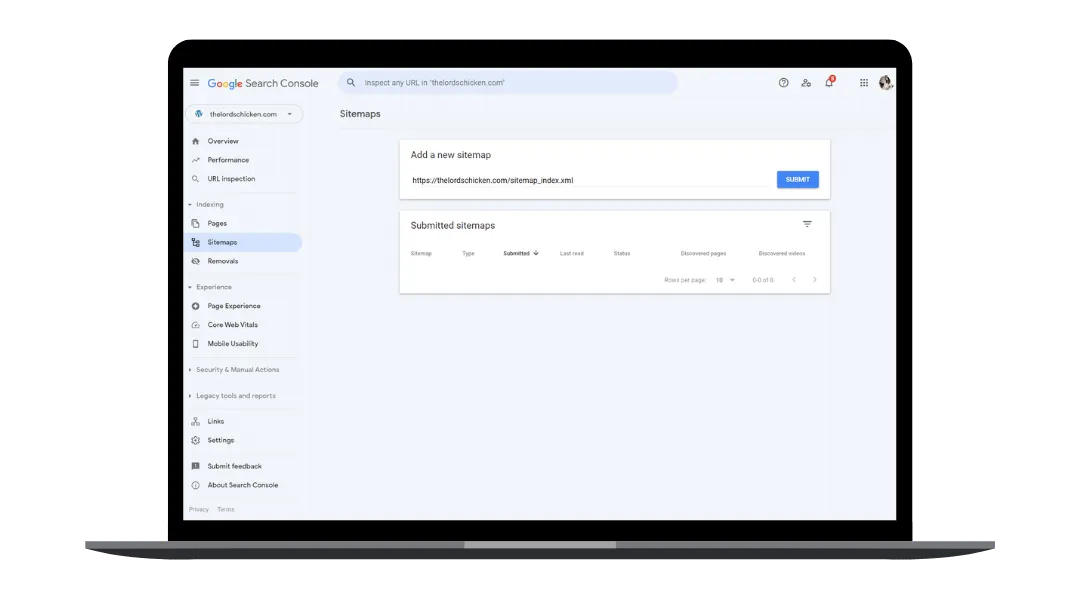
Submit your sitemap file next. A sitemap ends in `.xml`. Most WordPress sites generate sitemaps automatically. Common sitemap locations are `/sitemap.xml` or `/sitemap_index.xml`. Submit the sitemap through the Search Console interface to tell Google about all your pages at once.
[Image: Google Search Console setup showing sign-in screen]
Indexing Your Site in Google Search
Google’s crawlers may eventually discover your site on their own. Submitting your sitemap accelerates this process. When you submit a sitemap, you’re asking Google to crawl and index those pages immediately rather than waiting for crawlers to find them passively.

Google describes the process this way: “When crawlers find a webpage, our systems render the content of the page, just as a browser does. We take note of key signals—from keywords to website freshness—and we keep track of it all in the Search index.” Crawling can take anywhere from a few days to several weeks. Use the URL Inspection tool in Search Console to check whether a specific page has been indexed.
[Image: URL Inspection tool in Google Search Console]
The Performance Report: Understanding Your Data
The Performance Report is where keyword data lives. This report shows clicks (how many users clicked from Google Search to your site), impressions (how many times Google displayed your site in search results), click-through rate (CTR), and average position (where your page ranked on average).

You can filter and group this data by dimensions: queries, page URLs, countries, device type, search type, or dates. You can also toggle between different metrics. Use these combinations to answer specific questions:
- Which queries produce the most clicks?
- Which pages get high impressions but low clicks?
- Which queries rank position 4-6 (the easiest positions to improve)?
- Which long-tail keywords bring qualified traffic?
Stefanie Morris recommends exporting all report data and filtering it in Google Sheets. This approach makes it easier to identify patterns across your entire dataset and spot low-hanging optimization opportunities.
Available metrics in the Performance Report:
- Clicks: Number of clicks from Google Search results to your site. This is traffic Google sends you.
- Impressions: Number of times your site appeared in search results when a user viewed that search results page. A result must be on the page the user views to count as an impression.
- CTR: Click-through rate, calculated as clicks divided by impressions. Higher CTR means searchers see your result and choose to click it.
- Average Position: Where your highest-ranking page appeared on average for a query. If you rank at position 2 for one query and position 4 for another, your average position is 3.
Three Specific Ways to Refine Keywords Using Search Console
Once you’ve exported and reviewed your Performance Report, you can act on that data. Here are three approaches to keyword refinement:
Refine Keywords With Low Rankings
Low-ranking keywords (positions 7-15 or beyond) represent your biggest opportunity. These keywords show that Google knows your page is relevant to the query, but your content isn’t compelling enough to rank higher. Small on-page improvements often move these keywords from position 10 to position 4 or 5.
- Open Google Search Console and go to Performance
- Click Search Results to see all queries
- Click the Average Position column to sort by position
- Identify queries ranking in positions 7-15
- Select the page URL for one of these queries
- Update these elements for that keyword: title tag (50-60 characters), H1 heading (include the target keyword naturally), H2 subheadings (cover keyword variations), body content (add 200+ words addressing the search intent), image alt text (describe images and include related keywords)
Improve Click-Through Rate for High-Impression Keywords
Some keywords show high impressions but low clicks. This means Google is showing your site to searchers, but your title tag and meta description aren’t compelling enough to warrant a click. These keywords are easier to fix than low-ranking ones because the ranking position is already strong.
- Open Google Search Console and go to Performance
- Click the Pages tab
- Filter to show only one target page URL
- Click Queries and sort by Impressions (highest first)
- Select the high-impression, low-click keyword
- Review and rewrite: title tag (make it compelling and specific to the search query), meta description (write a 150-160 character summary that answers the query intent), H1 heading (ensure it matches the user’s search intent), body content (confirm your opening paragraph directly addresses what the searcher is looking for)
Identify and Target Long-Tail Keywords
Long-tail keywords are specific, multi-word phrases with lower search volume but higher purchase intent. They’re easier to rank for because they have less competition. If your site already shows up for a long-tail query (even in positions 15+), you’re closer to ranking well than you are for head-term keywords.
- Open Google Search Console and go to Performance
- Click New Filter and select Page
- Enter the URL of the page you want to analyze
- Apply the filter
- Scroll through queries and identify long-tail phrases your page shows up for
- Choose one with search intent that matches your content
- Update these elements: title tag (include the long-tail phrase), H1 and H2 headings (use the long-tail phrase and related variations), body content (address the specific question or need the long-tail phrase suggests), image alt text (include the long-tail phrase where relevant)
Connecting Keywords to Content Quality
Keyword refinement starts with data but ends with better content. Each adjustment you make should serve the searcher’s intent, not just include the keyword. Read the top-ranking pages for your target query. Match their content depth and specificity. If the top results are 2,000-word guides, your 500-word post won’t rank. If the top results are quick how-to lists, write a list, not a narrative.
Google rewards pages that comprehensively answer the query. Use Google Search Console to identify which queries matter for your business. Then write or rewrite your content to answer those queries better than your competitors do.
Next Steps for SEO-Friendly Websites
To build a foundation for organic traffic growth, consider these actions:
- Set up Google Search Console if you haven’t already. Verify your site and submit your sitemap.
- Review your Performance Report monthly. Export the data and identify your biggest opportunities.
- Prioritize keywords in positions 5-15. These rank with small improvements.
- Audit your meta descriptions. High-impression, low-click keywords often have weak descriptions.
- Get a full SEO audit to understand technical issues, site structure problems, and content gaps beyond what Search Console shows.
If you’re building a new site or redesigning an existing one, work with an SEO-focused designer who understands WordPress, Showit, or your platform. Structural choices made during site design affect how easily Google crawls and ranks your content.
Morris & Co. Marketing provides done-for-you SEO for creative entrepreneurs, law firms, and wedding professionals. Reach out for an audit of your site or to discuss a strategy for using Search Console data to drive measurable organic growth.


