


How Showit Sitemaps Work and Why They Matter for SEO
Stefanie Morris, founder of Morris & Co. Marketing, specializes in WordPress SEO and Showit SEO for creative entrepreneurs. She works with clients building their websites on Showit to ensure their sitemaps guide Google correctly. A sitemap tells Google which pages exist on your website and which ones matter most to your business.
Without a properly configured sitemap, Google cannot find and index all your pages. If Google cannot see your pages, your customers will not find them in search results. This directly impacts whether your website generates organic traffic.
What Sitemaps Actually Are
A sitemap is a file that lists every URL on your website. Search engines read this file to understand your site structure. Sitemaps use XML format, which only search engine robots can read directly, though you can view the raw text in any browser.
Showit sitemaps end in .xml or may be found at /sitemap_index.xml. WordPress sites use /wp-sitemap.xml. Both Showit and WordPress sites can use RankMath or Yoast SEO to generate their sitemaps automatically.
How Sitemaps Help Google Find Your Pages
Google crawls the web by following links. Without a sitemap, Google depends on the internal linking structure of your site to discover pages. New pages take longer to appear in search results. Pages you have not linked prominently may never get indexed at all.
A sitemap accelerates this process. By submitting your sitemap to Google Search Console, you tell Google exactly which pages exist and how they relate to each other. Google reads this information and prioritizes crawling those URLs.
Submitting a sitemap to Google Search Console is beneficial if you have a new website, multiple web pages, frequent content updates, a blog with regular posts, products for sale, or periodic promotions.
The Four Sitemap Types That Matter Most for Showit
Stefanie Morris recommends using four types of XML sitemaps when working with Showit clients in industries like weddings, coaching, and services:
Post sitemaps list your blog posts. Page sitemaps list your main website pages. Category sitemaps organize your content by topic or type. Local sitemaps help location-based businesses appear in local search results.
These four sitemaps live inside your Sitemap Index at https://yourdomain.com/sitemap_index.xml. The index acts as a master list that Google reads first. From there, Google accesses the individual sitemap files.
How to Check What Your Sitemap Currently Looks Like
To see your Showit sitemap, add one of these to your domain:
/sitemap_index.xml becomes https://yourdomain.com/sitemap_index.xml
/wp-sitemap.xml becomes https://yourdomain.com/wp-sitemap.xml
/sitemap.xml becomes https://yourdomain.com/sitemap.xml
When you visit the URL, you will see a list of XML entries. Each entry shows the URL, the date it was last modified, and how often Google should check it.
A healthy Showit sitemap includes pages, posts, categories, and local entries (if applicable). An unhealthy sitemap might only list posts. It might completely omit pages. It might include auto-generated WordPress pages like “Sample Page” or posts like “Hello World” that provide no value to your business.
Common Problems in Showit Sitemaps
Most Showit sites have one or more of these issues:

The sitemap only includes an XML file with the word “post” and nothing else. Your business pages do not appear in search results because they were never submitted to Google.
The sitemap includes no page-specific XML file. All your custom pages are missing from Google’s index.
The sitemap only lists the home page and /blog/ directory. Your service pages, portfolio, or about page are invisible to search engines.
The sitemap includes the WordPress default page called “Sample Page.” This page adds nothing to your business and wastes Google’s crawl budget.
Setting Up Your Showit Sitemap with RankMath
RankMath is an SEO plugin that automatically generates sitemaps for Showit sites running on WordPress. Stefanie Morris uses RankMath Pro for all her Showit SEO projects because it provides granular control over what pages appear in your sitemaps.
To enable sitemaps in RankMath, log into WordPress and navigate to RankMath. Select Sitemap Settings. Click through each sitemap type. Toggle on Post Sitemap, Page Sitemap, and Local Sitemap. Turn off all other sitemaps (Video, News, Image, Category, Tag) unless your business specifically needs them.
Once activated, RankMath generates your XML sitemaps automatically. RankMath updates these sitemaps every time you publish or update content. You do not have to manually regenerate them.
If you use RankMath on a Showit-WordPress hybrid site, the plugin will create separate sitemap files for pages, posts, products, and categories. All of these feed into the main sitemap index.
Cleaning Your Sitemap Before Submitting to Google
Before you submit your sitemap to Google Search Console, verify that it contains only pages and posts your business actually needs. Deleting unnecessary URLs removes waste from Google’s crawl budget.
Common pages to delete include /sample-page/ and /blog/hello-world/. WordPress creates these pages automatically during installation. They remain in your sitemap unless you delete them manually.
To remove dead pages from your WordPress site, log into https://yourdomain.com/wp-admin/. Navigate to Pages. Delete Sample Page and any other pages you do not use. Navigate to Posts. Delete Hello World and any other placeholder posts. RankMath will update your sitemaps automatically once you delete these items.
Check your sitemap again at https://yourdomain.com/sitemap_index.xml to confirm the dead pages are gone.
Submitting Your Sitemap to Google Search Console
Google Search Console is the place where you tell Google about your website. It shows you which of your pages Google has found, how many times your pages appear in search results, and which search queries bring people to your site.
To submit your Showit sitemap to Google Search Console:
First, log into Google Search Console at search.google.com. Verify that you own your website domain. Select your property if you have multiple sites in Search Console.
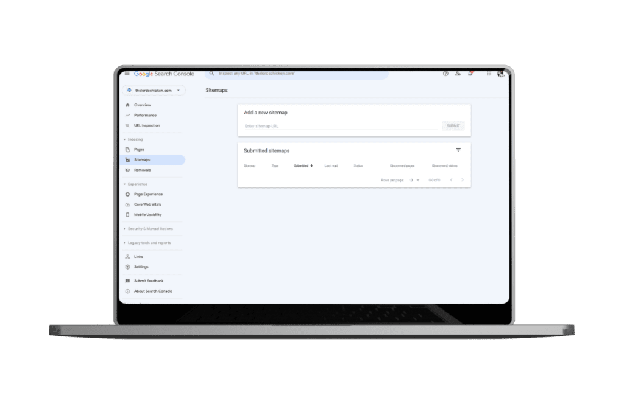
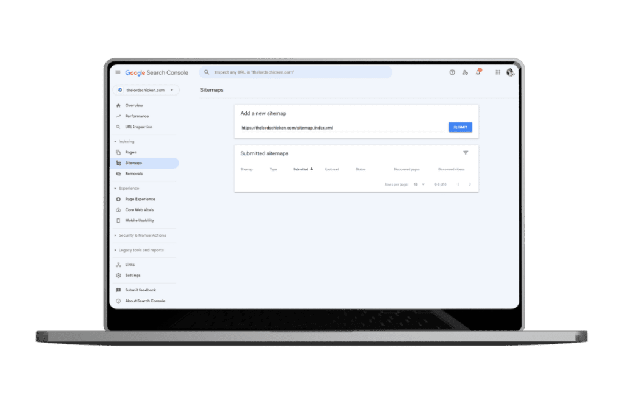
Navigate to the Sitemaps section in the left menu. Select Sitemaps.
Enter your sitemap URL in the field. This is typically https://yourdomain.com/sitemap_index.xml. Click Submit.
Google will crawl your sitemap and begin indexing the URLs it contains. Within a few days to a week, you will see the indexed URL count increase in Google Search Console.
What Happens After You Submit Your Sitemap
Google reads your sitemap and adds all the URLs to its crawling queue. Google then visits each URL to understand the content, check for quality issues, and determine whether the page deserves to appear in search results.
The presence of your URL in Google’s index does not guarantee that it will rank for any particular search query. Ranking depends on the quality of your content, the authority of your domain, and whether the content actually answers what searchers are looking for.
A submitted sitemap handles the first part of the process: ensuring Google knows your pages exist. The quality and relevance of your content handle the rest.
Signs That Your Showit SEO Needs Help
If your Showit sitemap meets any of these criteria, your site needs professional SEO review:
Your sitemap only contains posts and completely excludes pages. Your service pages, about section, and contact page are not being indexed.
Your sitemap includes the default WordPress pages and posts (Sample Page, Hello World). You have not cleaned up your site before submitting it to Google.
Your sitemap has not been submitted to Google Search Console at all. Your URLs are not being crawled or indexed efficiently.
Your sitemap is out of date. You have published new pages or posts, but they do not appear in your XML sitemap.
Stefanie Morris works with Showit site owners to audit their sitemaps, identify indexing problems, and configure RankMath for proper XML sitemap generation. She also reviews whether your pages are actually ranking in Google Search Console and improves them if they are not.
If your Showit sitemap needs attention, reach out through the contact page to schedule a consultation.


