





Estimated reading time: 3 minutes
Originally published March 13, 2023.
How to Use Showit SEO Tools
Showit includes four built-in SEO tools that directly control how search engines read and rank your pages, and on most websites I audit they are either misused or ignored. This guide covers how to configure each one correctly: Page Title, Meta Description, Text Tags, and Image SEO.
Most Showit users do not fully utilize the platform’s native SEO capabilities. These tools exist. They are available. Most site owners simply apply them incorrectly or incompletely.
When you set up Showit SEO tools correctly, you determine what search engines see, what appears in results, and what social networks display when your pages are shared. The four essential tools are Page Title, Meta Description, Text Tags, and Image SEO settings. Each serves a specific function in search visibility.
In This Guide
- The Four Core Showit SEO Tools That Control Search Visibility
- How to Access Showit SEO Tools in Your Site Settings
- Page-Level SEO Tools in Showit
- Text Tags and HTML Header Structure
- Image SEO Settings and Configuration
- Core Best Practices for Showit Website SEO
- Next Steps for Your Showit Website SEO
The Four Core Showit SEO Tools That Control Search Visibility
Showit structures SEO data in four distinct places. Understanding where each tool lives and what it does is the first step toward proper configuration.
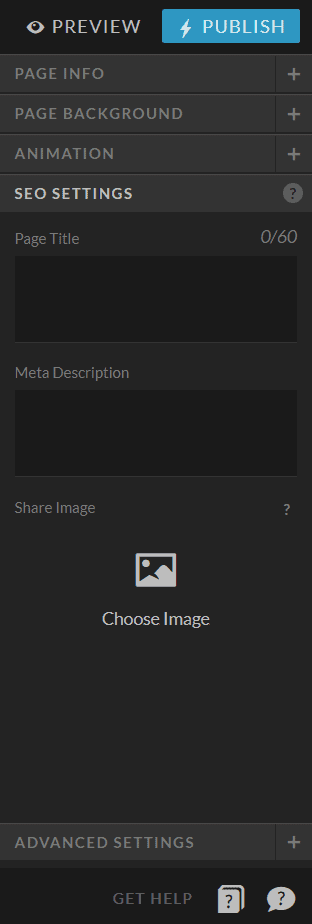
Page Title is the clickable headline that appears in search results. Google displays approximately 60 characters. Your title should identify what the page is about and include your primary keyword. Keep it under 70 characters.
Meta Description is the brief summary appearing below the title in search results. This text aims to convince someone to click your link. Descriptions should stay under 160 characters and clearly state what visitors will find on the page.
Text Tags are HTML heading elements (H1, H2, H3) that structure your page content. Search engines use these tags to understand the hierarchy and importance of your information. Showit automatically assigns tags based on font settings, but manual adjustments provide more control.
Image SEO settings allow you to name images with alt text and descriptions. Search engines cannot see images the way humans do. Alt text and image titles tell search engines what an image contains, improving indexing accuracy.
Together, these four tools form the foundation of Showit website SEO. Missing even one creates gaps in how search engines understand your site.
How to Access Showit SEO Tools in Your Site Settings
Accessing Showit’s SEO settings requires just two steps.
Step 1
Start by logging into app.Showit.co. On the left side of your screen, locate and select the Site tab. This tab controls global settings that apply to your entire website.

Step 2
Once in the Site tab, select SEO settings from the right-side menu. Here you will find fields for Page Title, Meta Description, Meta Keywords, and Share Image. These settings apply to your homepage. Individual pages receive their own SEO configuration through page-level settings.
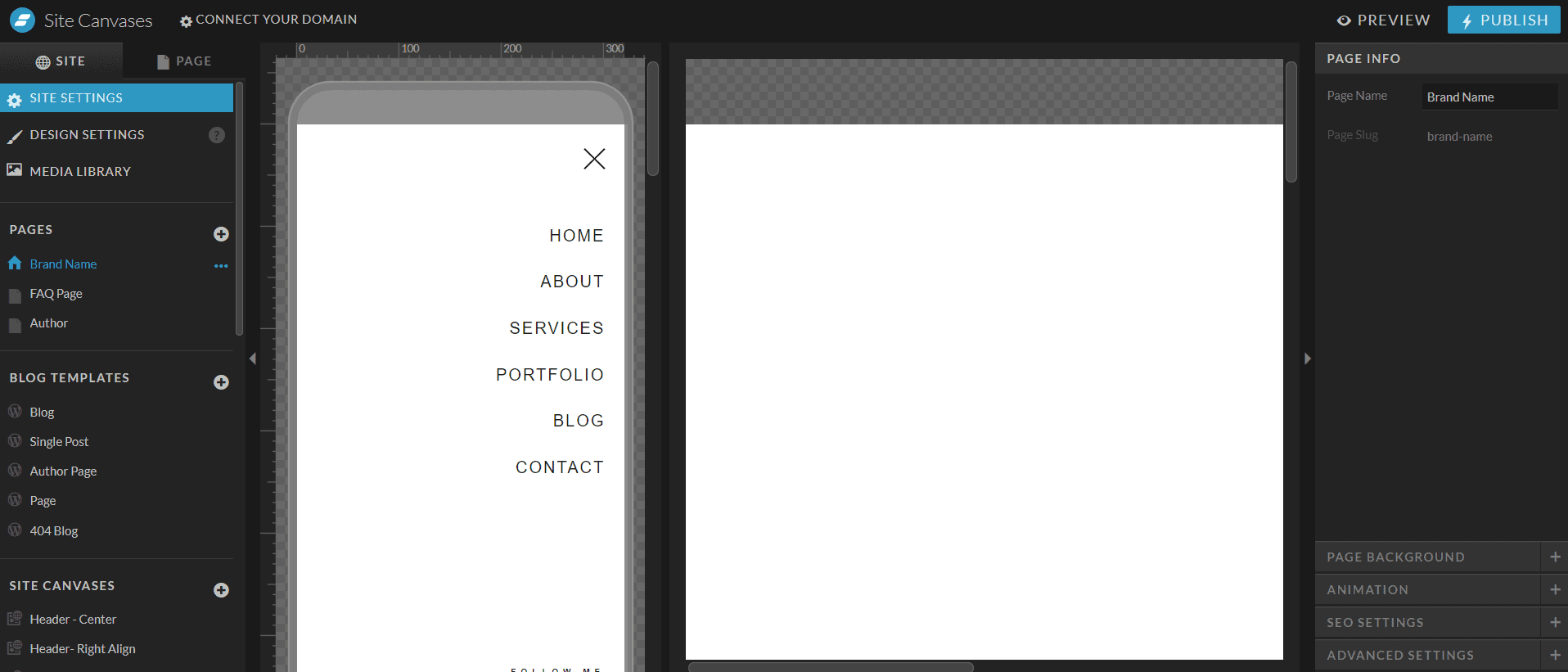

[Image: Showit Site tab and SEO settings menu location]
After entering your information, click “Save and Publish” to confirm your changes. Without this step, your edits remain in draft form and search engines will not see them.
Page-Level SEO Tools in Showit
Beyond site-wide settings, Showit allows you to configure SEO for individual pages. These page-level settings override your homepage defaults and should reflect each page’s specific topic.
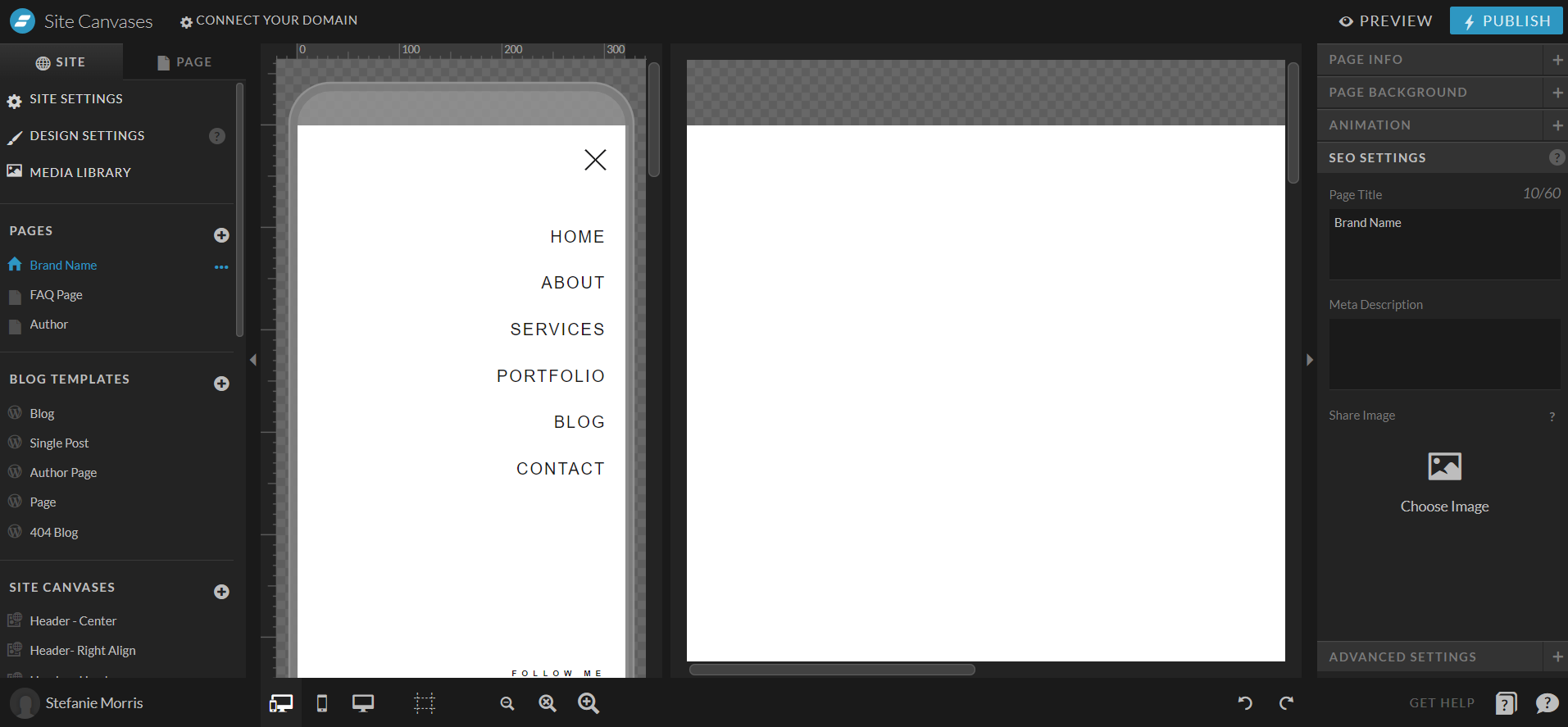
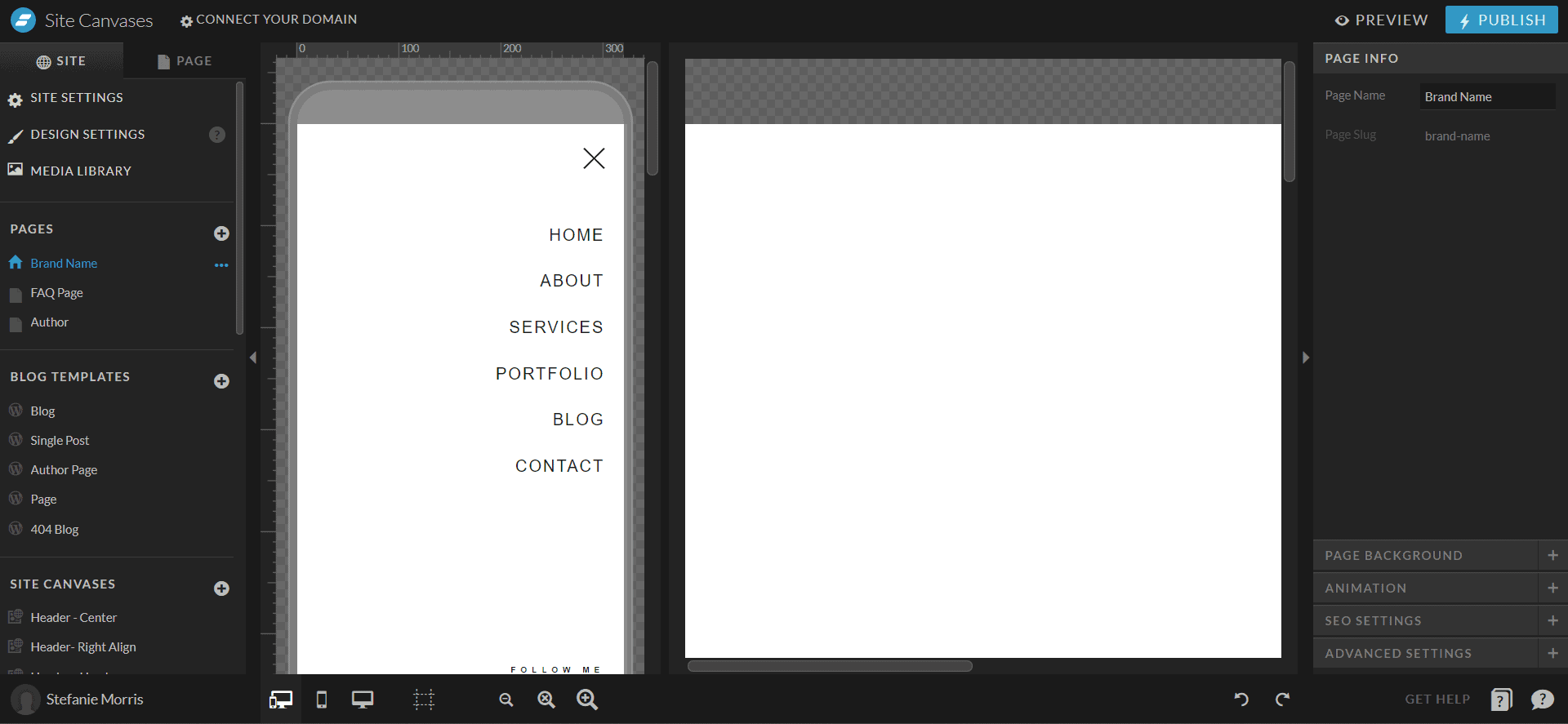
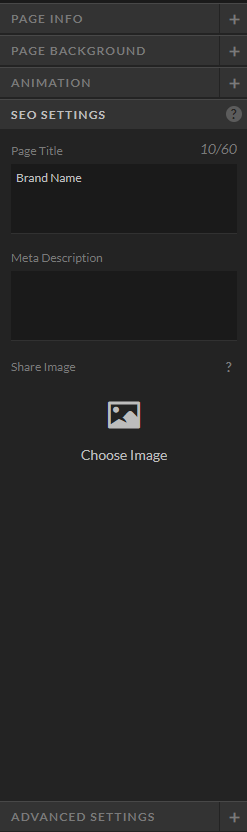
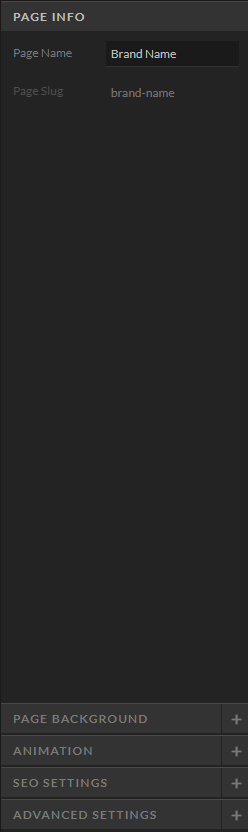
[Image: Showit page SEO configuration showing Title, Meta Description, and Share Image fields]
Page Title Configuration
Your page title serves two audiences: search engines and potential visitors. The title tells both what your page contains.
When creating page titles in Showit, include your most important keyword and the page topic. A title like “Showit Website Design for Creative Entrepreneurs” clearly identifies the page purpose and includes a searchable keyword phrase. Titles without keywords or clarity perform worse in search results.
Google shows only 60 characters in mobile search results and approximately 70 on desktop. Write titles that convey value within that space. Do not simply repeat your keyword multiple times.
Meta Description Configuration
Your meta description appears directly below your page title in search results. This text is your pitch to click. Effective descriptions answer a question or promise a specific benefit.
Meta descriptions should be 150 to 160 characters long. They must directly relate to page content. If your description promises something the page does not deliver, visitors will leave immediately, signaling search engines that your page ranks poorly for that query.
When you write a meta description, include your target keyword naturally. Avoid keyword stuffing. A description like “Learn the four Showit SEO tools that improve search visibility. Configure page titles, meta descriptions, and image settings correctly” includes the keyword and explains what the reader gains.
Share Image Configuration
When a Showit page is shared on social media or messaging apps, a preview image appears alongside the title. This is your Share Image. The image should be visually distinct, represent your page topic, and include text that makes sense even at small sizes.
For WordPress blog posts on your Showit site, set the Share Image through the Featured Image setting in WordPress. Showit reads that field and displays it across social networks.
Before launching your website, verify all pages have Share Images selected. Empty or generic images reduce click-through rates on social shares.
Text Tags and HTML Header Structure
Search engines index your pages using HTML structure. Text tags (also called heading tags) tell search engines which content matters most.
The proper hierarchy is H1, then H2, then H3. Your page should have one H1 tag containing your main topic. All other headings should be H2 or H3, representing subsections.
Showit automatically assigns HTML tags based on your font design choices. A large, bold heading gets an H1 tag automatically. Medium headings become H2 tags. This is intentional and helpful.
You can manually adjust tags if you need more control. If Showit’s automatic assignment does not match your content structure, edit individual text elements to assign the correct tag level.
Using header tags correctly matters because search engines weight H1 content more heavily than body text. If your page topic is buried in small text instead of set as an H1 heading, search engines may misunderstand what your page is about.
For detailed guidance on header tag configuration in Showit, see Stefanie Morris’s complete guide, “How to Use Showit Header Tags Like an SEO Pro.”
Image SEO Settings and Configuration
Showit’s image SEO settings let you assign both a title and a description (alt text) to every image. These fields communicate image content to search engines.
When you click on an image in Showit’s editor, you will see fields labeled “SEO Title” and “SEO Description.” Fill both. The SEO Title names the image. The SEO Description should describe what the image shows and why it is relevant to the page topic.
Example: Instead of leaving an image titled “Photo-2024-01-15.jpg,” assign a descriptive SEO Title like “Showit editor dashboard screenshot” and a description like “The Showit editor interface showing page editing tools and design elements.” This tells search engines the image is a screenshot of Showit’s editor interface.
Do not write keyword-stuffed descriptions. Write clear, accurate descriptions. Search engines penalize keyword stuffing in alt text and users with screen readers suffer worse experience.
Optimizing Images for Search and Performance
Image optimization extends beyond alt text. Your images should be compressed, named appropriately, and sized correctly for where they appear on your page.
Showit handles much of the image delivery automatically through its content delivery network. However, you should upload optimized images, not massive files. A hero image on your homepage should be roughly 1200px wide and compressed to under 300KB.
For complete guidance on image optimization in Showit, including formats, dimensions, and performance considerations, refer to Stefanie Morris’s guide, “Photographers Guide to Showit Image Optimization.”
Core Best Practices for Showit Website SEO
Stefanie Morris identifies three critical practices that separate SEO-prepared Showit websites from those that perform poorly in search results.
First, start with an SEO-designed template. Showit templates created by experienced SEO professionals include proper heading structure, semantic HTML, and pre-configured settings. Buying a quality template reduces the setup work and gives you a foundation built for search visibility.
Second, conduct a baseline SEO audit before launching or revising your site. An audit reveals missing meta descriptions, improperly configured images, incorrect header structure, and other technical issues. Knowing what needs fixing saves time and prevents months of poor search performance.
Third, work with a website professional who understands both design and SEO. If you are rebuilding your site or launching a new design, find someone who specializes in both brand identity and search visibility. A designer who builds for aesthetics alone will create beautiful websites that fail to generate organic traffic from Google.
Next Steps for Your Showit Website SEO
Your Showit website includes all the tools needed to perform well in search results. The four tools covered here form the foundation. Implementing them correctly is straightforward.
Start by reviewing your homepage. Navigate to Site settings and verify that Page Title, Meta Description, and Share Image are filled in with specific, keyword-focused content. Then move to individual pages and repeat the process.
Set accurate alt text and descriptions on every significant image. Review your heading structure to ensure H1 tags describe your main topic and H2 tags organize your content logically.
Morris & Co. Marketing, helps Showit website owners optimize their sites for search. If you want a complete assessment of your site’s SEO readiness and specific recommendations for improvement, reach out through the contact form at MoCo.Marketing.


